
Sharing photos through email? Still one of the best ways to send pics to friends, family, work buddies, and clients. Sure, we’ve got apps and cloud stuff now. But email? It just works. Everyone has it. The tricky part is that photos are huge these days. And when you try to send a bunch at once? Error messages pop up. Super annoying. Ever tried sending vacation photos and got that “files too big” message? Yeah, me too. Our phones take amazing pics now. But those pics are massive – like, several megabytes each (which means they take up lots of space). Even a few photos can be too much for email. Good news though! There are smart ways to send lots of photos without losing quality. Or waiting forever for uploads. Let me show you how email attachments work. And when to use other options like cloud storage. It’ll make your life way easier.
Why People Send Multiple Photos Through Email
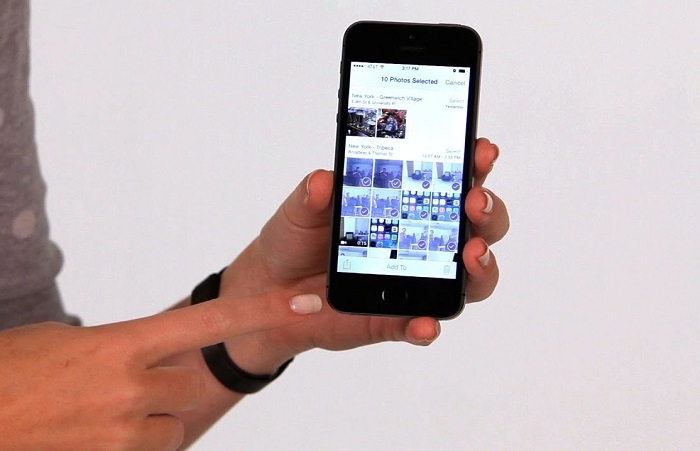
Email works for everyone. That’s the magic. No special apps needed. No new accounts. Just send and done.
People send multiple photos for stuff like:
- Family parties and holiday fun
- Wedding pics
- Work presentations
- Product photos for customers
- School projects
- House listings
- Design work
- Travel memories
- Getting client feedback
Email works on every device. Every system. That’s why we still use it.
Understanding Email Attachment Limits
Before you attach tons of photos, here’s the deal. Every email service has limits. Most let you send between 20 MB and 25 MB. Sounds like a lot, right? But modern phone photos are huge.
Check this out:
| Number of Photos | Average Size Per Photo | Total Size |
| 5 Photos | 4 MB | 20 MB |
| 10 Photos | 4 MB | 40 MB |
| 20 Photos | 4 MB | 80 MB |
See? Even a small batch of photos gets too big fast.
When this happens, your email won’t be sent. Or it stops halfway. Or your email service says “use cloud storage instead.” Frustrating!
How to Send Multiple Photos in Gmail
Gmail makes sending photos pretty easy. Works the same on computers and phones.
On a Computer
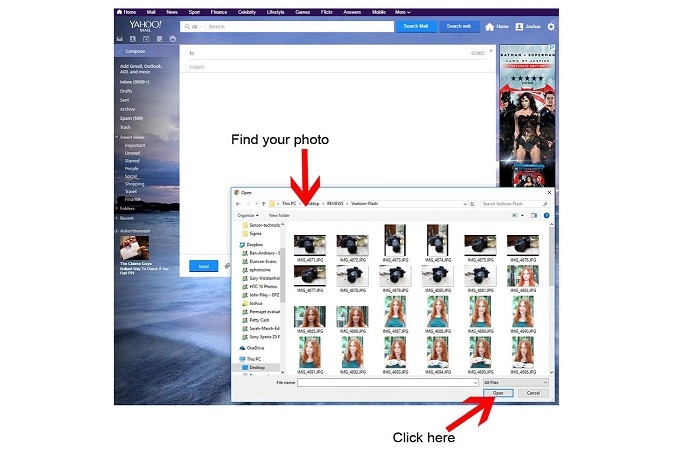
- Open Gmail and click Compose.
- Type the person’s email.
- Click the paperclip icon.
- Pick your photos.
- Wait for an upload.
- Hit Send.
If your files are too big? Gmail often asks to use Google Drive instead. It sends a link. Smart!
On a Smartphone
- Open Gmail app.
- Tap Compose.
- Hit the attachment icon.
- Choose your photos.
- Wait for an upload.
- Send it off.
Simple process. But size limits still get in the way.
Sending Multiple Photos Through Outlook
Outlook works great too. Good for personal stuff. Great for work emails.
To attach photos:
- Open Outlook and start a new email.
- Click Attach File.
- Pick your images.
- Wait for an upload.
- Send the message.
Files too big? Outlook suggests OneDrive. It uploads there and shares a link. Super helpful for work folks who send lots of images.
Sending Photos Through Apple Mail
Apple users? You’ve got nice options.
On a Mac, just drag photos into your email. Drop them right in! Apple Mail handles it. Often ask if you want smaller sizes before sending.
On iPhone or iPad:
- Open Mail app.
- Start a new message.
- Add photos from your library.
- Tap Send.
- Pick image size if asked.
Apple’s resize feature? It shrinks files but keeps them looking good.
Why Large Photos Cause Problems
Today’s phones take crazy good photos. High resolution (which means lots of detail). But bigger files mean bigger problems for email.
Big photo files cause:
- Slow uploads
- Failed emails
- Error messages
- Long download times
- Full storage
That’s why we need other ways to send lots of images.
Compressing Photos Before Sending
Want to send more photos? Make them smaller first!
Compression shrinks file size. But photos still look great. Most people can’t tell the difference. Unless they really look close.
Why compress photos:
- Faster uploads
- Smaller files
- Quick downloads
- Fits email limits better
Most phones have this built in. Photo apps do it too. Online tools work great.
Using ZIP Files to Send Multiple Photos
ZIP files are super handy.
A ZIP file puts all your photos in one compressed folder. Make everything neat and tidy.
Why ZIP Files Rock
- Cleaner emails
- Smaller sizes
- Better organization
- Faster sending
Creating a ZIP File on Windows
- Select photos.
- Right-click.
- Pick Send to > Compressed Folder.
Creating a ZIP File on Mac
- Select photos.
- Right-click.
- Choose Compress.
People download the ZIP. Then extract photos. Easy!
When Cloud Storage Is the Better Option
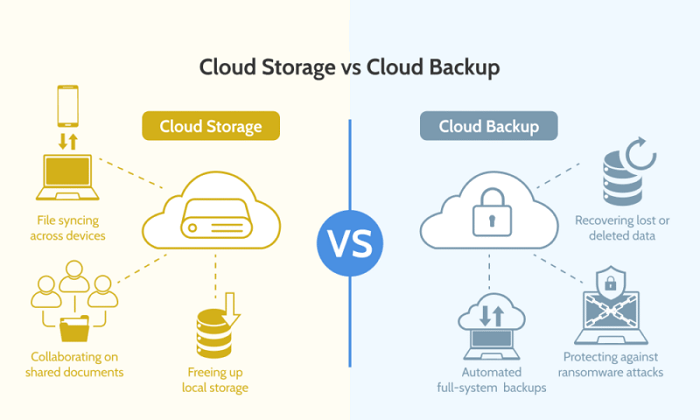
Sending tons of photos? Like dozens or hundreds? Cloud storage wins.
You upload once. Share a link. Done!
Popular options:
- Google Drive
- OneDrive
- Dropbox
- iCloud Drive
Cloud storage is awesome because:
- No size limits (pretty much)
- Super fast sharing
- Stays organized
- Easy teamwork
- Keeps original quality
For photographers and businesses? Cloud is the way to go.
Organizing Photos Before Sending
Make life easier. Organize first!
Before sending:
- Delete duplicates
- Rename important pics
- Group into folders
- Pick only the best ones
People love getting organized photos. Not random files with weird names.
Good names like:
- Family_Reunion_2026_01.jpg
- Product_Photo_Front_View.jpg
- Conference_Team_Photo.jpg
Way better than IMG_4578.jpg, right?
Common Mistakes When Sending Multiple Photos
We all make these mistakes. Let’s fix them!
Attaching Too Many Photos at Once
Big batches fail. Split them up. Send in smaller groups.
Forgetting to Check File Size
Always check total size first. Save yourself trouble.
Sending Original Photos Unnecessarily
Just for viewing? Compressed works fine.
Uploading Duplicate Files
Check before sending. No doubles!
Ignoring Cloud Storage Options
Sometimes a link beats attachments. Way easier!
Email Attachments vs Cloud Sharing
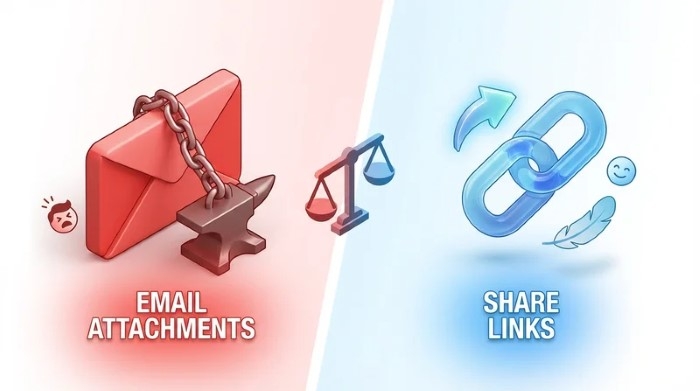
Which to use? Depends on your photos.
| Method | Best For |
| Email Attachments | Few photos |
| ZIP Files | Medium batches |
| Cloud Storage Links | Lots of photos or pro sharing |
Small collection? Attachments work. Big library? Cloud all the way.
Security Considerations
Sending photos? Think about privacy.
Remember to:
- Check email addresses twice.
- Remove private info from photos.
- Skip public WiFi for sensitive pics.
- Password-protect ZIP files if needed.
Double-checking saves embarrassment. Trust me.
Best Practices for Sending Multiple Photos
Make it smooth every time:
- Compress big images.
- Use clouds for huge batches.
- Organize before attaching.
- Check sizes twice.
- Verify addresses.
- Test big uploads first.
These habits prevent most problems. Simple!
We all send photos by email. But size limits and huge files make it hard. Good thing we’ve got options! A small batch of photos? Regular attachments work fine. Medium batch? ZIP files help tons. Big photo library? Cloud storage is your friend. Know your limits. Use compression when needed. Try cloud tools. You’ll send photos fast and easy. No more headaches. Just happy sharing!
