
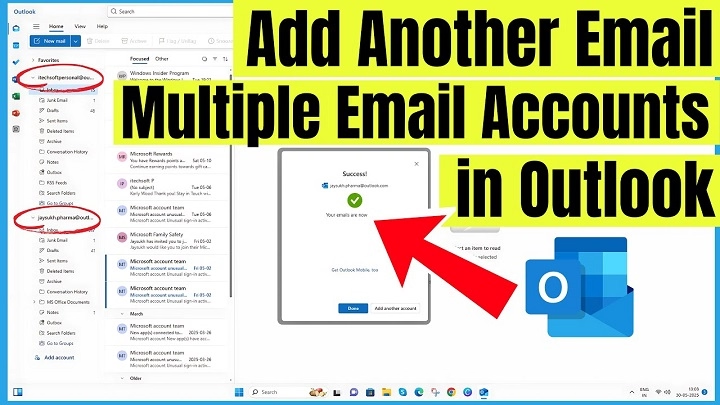
Getting a new email into Outlook sounds simple.
Until you actually try doing it.
Then suddenly Outlook starts asking about:
- IMAP
- POP
- SMTP
- sync settings
- passwords
- authentication
And honestly?
Most people instantly go:
“What even is all this stuff?”
Yeah.
Outlook setup can feel weirdly stressful sometimes.
Especially if you’re trying to:
- Add Gmail
- Connect work email
- Use Yahoo Mail
- Set up school accounts
- Sync multiple inboxes
- Move to a new computer
Good news though.
Most of the time?
Adding an email to Outlook is actually pretty easy once you know where everything is.
Let’s break it down step by step without making it sound like a networking textbook.
What Does “Add Email to Outlook” Mean?
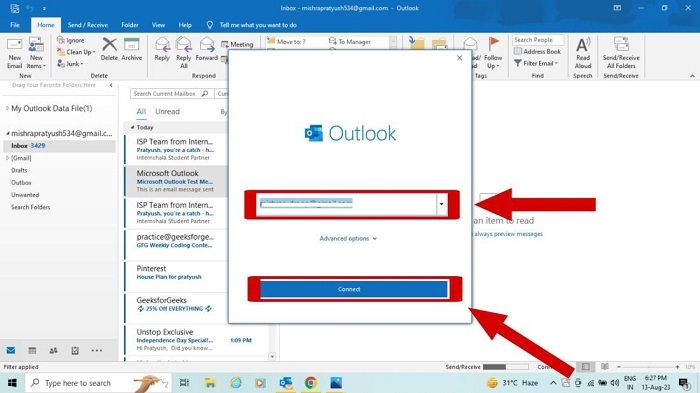
Basically:
you’re connecting an email account to Outlook so Outlook can:
- send emails
- receive emails
- sync folders
- manage inboxes
all in one place.
Instead of checking multiple apps constantly.
What Is Outlook?
Microsoft Outlook is Microsoft’s email platform.
People use it for:
- calendars
- contacts
- work communication
- scheduling
Huge in offices honestly.
Why People Add Multiple Emails to Outlook
Lots of reasons honestly.
Managing Everything in One App
Way easier than switching apps constantly.
Work and Personal Separation
Keep accounts organized.
Easier Notifications
One app handles everything.
Better Productivity
Especially for business users.
Outlook Supports Lots of Email Types
Honestly way more than people realize.
You can add:
- Gmail
- Yahoo Mail
- iCloud
- Business email
- School accounts
- Microsoft 365 accounts
- Exchange servers
Very flexible honestly.
How to Add an Email to Outlook Desktop
Let’s start with desktop Outlook first.
Usually the most powerful version honestly.
Step 1: Open Outlook
Launch Outlook normally.
Step 2: Go to File
Usually top-left corner.
Step 3: Click Add Account
You’ll see:
Add Account.
Click it.
Step 4: Enter Your Email Address
Type your email.
Example:
[email protected]
Then continue.
Step 5: Sign In
Outlook usually detects settings automatically now.
Just:
- enter password
- approve login
- allow permissions
Done honestly.
Outlook Auto Setup vs Manual Setup
Usually Outlook auto-detects everything.
But sometimes?
manual setup becomes necessary.
Especially with:
- Business email
- Custom domains
- Older providers
What Is IMAP?
IMAP syncs email across devices.
Most modern setups use IMAP honestly.
Very important.
Why IMAP Is Better Than POP
IMAP keeps:
- phone
- laptop
- tablet
all synced together.
POP downloads emails locally instead.
Much older honestly.
What Is SMTP?
SMTP handles:
sending outgoing email.
Basically:
email delivery system.
How to Add Gmail to Outlook
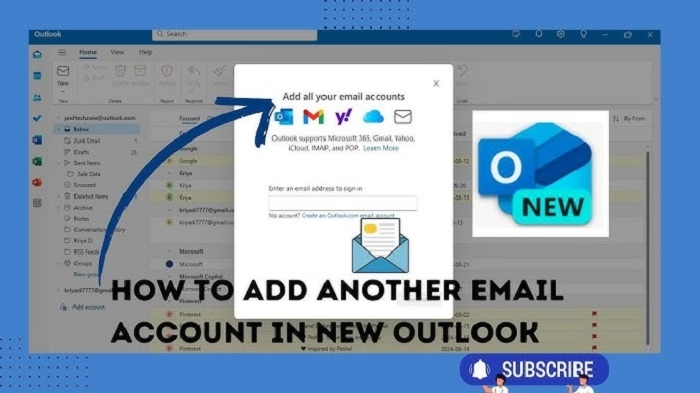
Very common honestly.
Usually:
- Add Gmail address
- Sign into Google
- Approve Microsoft access
- Sync completes
Pretty simple now.
Why Gmail Sometimes Requires Extra Security Steps
Google protects accounts heavily honestly.
You may need:
- Two-factor verification
- App permissions
- Browser approval
Very normal.
How to Add Yahoo Mail to Outlook
Usually:
- Add Yahoo email
- Sign into Yahoo
- Approve Outlook access
Simple honestly.
How to Add Business Email to Outlook
Business email setup varies more honestly.
Especially custom domains.
Sometimes IT departments provide:
- IMAP settings
- Exchange settings
- SMTP information
What Is Microsoft Exchange?
Enterprise email system used heavily by businesses.
Very common in offices honestly.
Why Exchange Feels Different
Because it integrates:
- calendars
- meetings
- contacts
- company directories
Very powerful honestly.
How to Add Email to Outlook Mobile
Microsoft Outlook Mobile honestly makes setup easier.
Outlook Mobile Setup Steps
Usually:
- Download Outlook app
- Open app
- Tap Add Account
- Enter email
- Sign in
Done honestly.
Why Outlook Mobile Is Popular
Because it combines:
- calendar
- notifications
- focused inbox
all together.
Can Outlook Handle Multiple Accounts?
Absolutely.
Lots of people manage:
- Work email
- Personal Gmail
- Business domains
- School accounts
inside one Outlook app.
Why Multiple Accounts Are Useful
Less app switching honestly.
Huge productivity improvement.
Can You Add Outlook Email to Gmail Too?
Yep honestly.
Email apps often work both ways.
Common Problems Adding Email to Outlook
People run into these constantly.
Wrong Passwords
Most common issue honestly.
Two-Factor Authentication Problems
Security settings block setup.
Incorrect IMAP Settings
Especially manual setup.
Firewall or Security Blocks
Corporate networks sometimes interfere.
Old Outlook Versions
Outdated apps create compatibility issues.
Why Outlook Sometimes Says “Something Went Wrong”
Honestly?
Outlook error messages can be hilariously vague.
Usually issue involves:
- login credentials
- internet connection
- permissions
- server settings
What Is an App Password?
Special password generated for:
third-party apps like Outlook.
Some providers require this honestly.
Especially with:
Google or Apple security.
Can Outlook Sync Contacts and Calendars Too?
Absolutely.
Very useful honestly.
Especially for work scheduling.
Why Businesses Love Outlook Integration
Everything connects together:
- meetings
- calendars
- Teams
- contacts
Huge office ecosystem honestly.
Difference Between Outlook Desktop and Outlook Web
People confuse these constantly.
Outlook Desktop
Installed software with advanced features.
Outlook Web
Browser-based email version.
Simpler honestly.
Can Outlook Work Offline?
Desktop Outlook?
Yep.
Very useful for:
travel
airplanes
spotty internet
Why Cached Email Helps
Outlook stores local copies honestly.
Allows offline viewing.
Can You Remove Email Accounts Later?
Absolutely.
Usually:
- Open account settings
- Select account
- Remove it
Simple honestly.
Does Removing Outlook Account Delete Emails?
Depends honestly.
Usually:
removes local connection only.
Server emails often stay intact.
Best Practices for Outlook Setup
Want a smoother setup?
Do this stuff honestly.
Use Strong Passwords
Security matters massively.
Turn On Two-Factor Authentication
Huge protection honestly.
Keep Outlook Updated
Avoid compatibility problems.
Verify Server Settings Carefully
Especially custom domains.
Test Sending and Receiving
Always verify that the setup works properly.
Why Outlook Sometimes Creates Duplicate Emails
Sync conflicts honestly.
Especially:
POP accounts
multiple devices
older setups
Can Outlook Combine Multiple Inboxes?
Yep honestly.
Very useful for heavy email users.
Why Focused Inbox Exists
Outlook tries sorting:
important vs less important emails automatically.
Mixed opinions honestly.
Can Outlook Be Used for Personal Email Only?
Absolutely.
Not just business honestly.
Lots of people use Outlook personally too.
Common Mistakes When Adding Emails
People do these constantly.
Using Wrong Password
Most common honestly.
Forgetting App Passwords
Especially Gmail and Apple accounts.
Choosing POP Instead of IMAP
Creates sync headaches.
Ignoring Security Prompts
Blocks setup completely sometimes.
FAQs About Adding Email to Outlook
Can Outlook add Gmail accounts?
Absolutely.
Does Outlook support Yahoo Mail?
Yep.
What is IMAP?
Modern syncing email protocol.
Is Outlook free?
Web version mostly yes.
Can Outlook manage multiple accounts?
Definitely.
Why won’t Outlook connect my email?
Usually login or server settings issue.
Can Outlook sync calendars too?
Absolutely.
Is Outlook good for business?
Huge business platform honestly.
Final Thoughts
Honestly?
Adding email to Outlook feels intimidating mostly because of all the technical terms floating around:
- IMAP
- SMTP
- Exchange
- authentication
But for most modern email providers…
Outlook honestly handles most setup automatically now.
And once everything connects properly?
Having all your:
- emails
- calendars
- contacts
- accounts
inside one place becomes incredibly convenient.
Especially if your digital life already feels chaotic enough without opening five separate inbox apps every day.
