
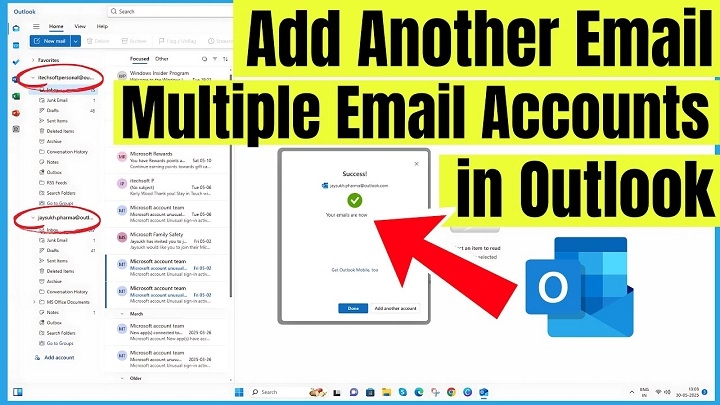
Setting up Outlook should feel easy.
But honestly?
The first time you try adding an email account, Outlook suddenly starts throwing weird words at you like:
- IMAP
- POP3
- SMTP
- Sync settings
- Authentication
And now you’re sitting there wondering if you accidentally became an IT technician.
Especially when you’re trying to connect:
- Gmail
- Yahoo Mail
- School email
- Work account
- Another Outlook account
The good news though?
Modern Outlook is way easier than it used to be.
Most setups honestly take just a few minutes now.
Usually all you need is:
- Your email address
- Password
- Internet connection
That’s basically it.
Let’s walk through exactly how to add an email account to Outlook without getting completely confused by all the tech stuff.
What Does Adding an Email to Outlook Mean?
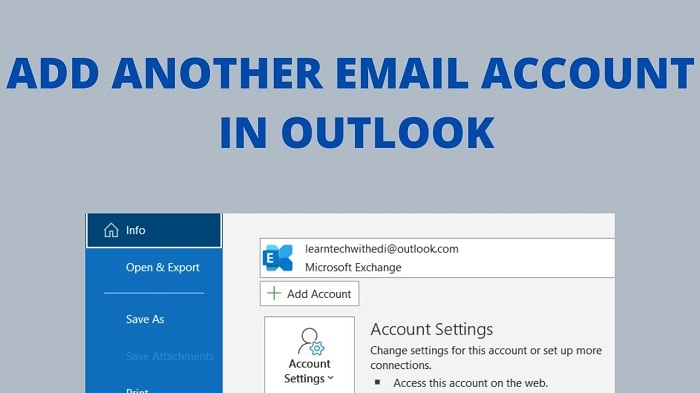
Basically:
you’re connecting an email account to Outlook so Outlook can:
- Send messages
- Receive emails
- Sync folders
- Show notifications
- Manage your inbox
Instead of checking email through a browser constantly.
Very convenient honestly.
What Is Outlook?
Microsoft Outlook is Microsoft’s email platform and app.
People use it for:
- Personal email
- Work communication
- Calendars
- Meetings
- Contacts
- Business tools
Huge in offices honestly.
Why People Use Outlook
Lots of reasons honestly.
Multiple Email Accounts Together
Everything in one place.
Better Organization
Folders, rules, and categories help massively.
Calendar Integration
Very useful for meetings.
Professional Features
Especially for business users.
Desktop Access
Many people prefer apps over browser tabs honestly.
Can Outlook Add Gmail Accounts?
Absolutely.
Gmail works very well with Outlook now.
Very common setup honestly.
Can Outlook Add Yahoo Mail?
Yep.
Yahoo Mail also connects pretty easily.
Can Outlook Add Work Emails?
Usually yes.
Especially if workplace uses:
- Microsoft 365
- Exchange
- Outlook business systems
Very common honestly.
Can You Add Multiple Emails to Outlook?
Definitely.
People often connect:
- Personal Gmail
- Work Outlook
- School email
- Business account
all inside one Outlook app.
Very practical honestly.
How to Add an Email to Outlook Desktop App
Let’s start with computer Outlook first.
Usually easiest, honestly.
Step 1: Open Outlook
Launch Outlook normally.
Step 2: Go to File
Usually top-left corner.
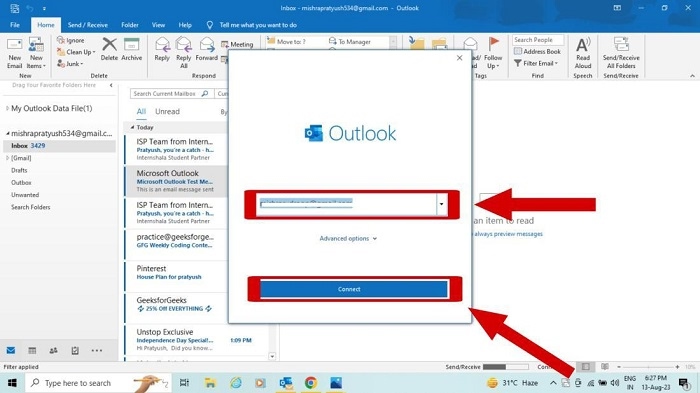
Step 3: Click Add Account
Outlook opens the setup screen.
Step 4: Enter Your Email Address
Type carefully honestly.
Typos cause lots of setup issues.
Step 5: Enter Password
Outlook usually handles setup automatically now.
Step 6: Finish Setup
Click:
Finish or Done.
Then Outlook starts syncing.
Simple honestly.
How Long Does Setup Take?
Usually:
- A few seconds
or - A few minutes
Depends on:
- Internet speed
- Mailbox size
- Email provider
How to Add Gmail to Outlook
Very common honestly.
Gmail Setup Steps
- Open Outlook
- Add Account
- Type Gmail address
- Sign into Google
- Allow Outlook permissions
- Finish setup
Pretty easy now honestly.
Why Gmail Asks for Permission
Google security systems protect your account.
So Gmail often asks:
whether Outlook can access your mailbox.
Normal honestly.
How to Add Yahoo Mail to Outlook
Yahoo’s setup is similar.
Usually:
- Add account
- Sign into Yahoo
- Approve Outlook access
- Finish setup
Simple honestly.
How to Add Outlook Email to Outlook
Honestly easiest setup usually.
Microsoft accounts sync very smoothly with Outlook.
Makes sense honestly.
What Is IMAP?
This term scares people constantly.
But honestly?
IMAP just means:
your emails sync across devices.
So:
- Phone
- Laptop
- Tablet
- Browser
all stay updated together.
Very important honestly.
What Is POP3?
Older email method.
POP3 mostly downloads emails to one device.
Less popular now honestly.
Should You Use IMAP or POP3?
Usually IMAP.
Way more convenient honestly.
What Is SMTP?
SMTP handles outgoing mail.
Basically:
sending emails.
Outlook usually configures this automatically.
Why Outlook Sometimes Can’t Add Accounts Automatically
Usually because:
- Wrong password
- Security settings
- Custom email domains
- Old servers
- Two-factor authentication
Very common honestly.
What Is Two-Factor Authentication?
Extra login security.
Usually requires:
- Password
plus - Verification code
Much safer honestly.
Why Two-Factor Authentication Can Affect Outlook Setup
Some email providers require:
special app passwords for Outlook.
Especially Gmail sometimes.
What Is an App Password?
Temporary special password for apps like Outlook.
Different from your main password honestly.
Can You Add Email Accounts on Outlook Mobile?
Absolutely.
The Outlook mobile app works really well honestly.
Outlook Mobile Setup Steps
Usually:
- Download Outlook app
- Open app
- Tap Add Account
- Enter email/password
- Allow permissions
Done.
Very easy honestly.
Outlook Desktop vs Outlook Mobile
Desktop version usually offers:
- More advanced features
- Better organization
- Full settings access
Mobile focuses more on:
speed and convenience.
Can Outlook Sync Calendars Too?
Yep.
Especially with:
- Gmail
- Outlook accounts
- Microsoft 365
Very useful for scheduling honestly.
Can Outlook Sync Contacts?
Absolutely.
Contacts usually import automatically during setup.
Common Problems When Adding Email to Outlook
People hit these constantly.
Wrong Password
Most common honestly.
Internet Problems
Weak connection interrupts setup.
Security Blocks
Providers sometimes block unfamiliar sign-ins.
IMAP Disabled
Especially Gmail occasionally.
Outdated Outlook Version
Old software causes issues honestly.
Why Outlook Keeps Asking for Password
Usually because:
- Authentication failed
- Password changed
- Security token expired
- Sync problems exist
Very common honestly.
Can Antivirus Software Affect Outlook?
Sometimes yes.
Security software may block:
- Mail syncing
- Connections
- Authentication
Worth checking honestly.
How to Remove an Email From Outlook
Usually:
- Open Account Settings
- Select account
- Remove account
Simple honestly.
Does Removing Account Delete Emails?
Usually no.
Emails normally remain stored online.
Unless using old local POP accounts honestly.
Can Outlook Handle Business Emails Well?
Honestly?
That’s one of its biggest strengths.
Especially with:
- Microsoft Office
- Teams
- Exchange
- Corporate systems
Very business-focused honestly.
Why Companies Love Outlook
Because Outlook connects deeply with:
- Meetings
- Calendars
- Teams chats
- Shared mailboxes
- Company directories
Huge office ecosystem honestly.
Best Practices When Adding Email to Outlook
Want fewer setup headaches?
Do this stuff.
Double-Check Email Address
Typos break everything honestly.
Use Correct Password
Seems obvious but causes tons of issues.
Keep Outlook Updated
Old versions struggle more.
Use IMAP
Better syncing honestly.
Turn On Two-Factor Authentication
Much safer.
Common Mistakes People Make
Honestly, it happens constantly.
Using Wrong Server Settings
Especially custom domains.
Ignoring Security Prompts
Blocks setup completion.
Mixing Work and Personal Accounts Confusingly
Can get messy honestly.
Forgetting Backup Email Access
Always smart to keep recovery options.
Can Outlook Work Offline?
Yep.
Outlook can store local email copies for offline access.
Very useful honestly.
Why Some People Prefer Browser Email Instead
Honestly?
Depends on preference.
Some people like:
- Simplicity
- No setup
- Access anywhere instantly
Others honestly prefer Outlook organization.
FAQs About Adding Email to Outlook
Can Outlook connect to Gmail?
Absolutely.
Does Outlook support Yahoo Mail?
Yep.
What is IMAP?
Email syncing system across devices.
Is Outlook free?
Basic versions often are.
Can I add multiple emails?
Definitely.
Why won’t Outlook accept my password?
Usually authentication or security issues.
Does Outlook sync contacts too?
Usually yes.
Is Outlook good for business email?
Very popular honestly.
Adding an email account to Outlook honestly sounds scarier than it really is.
Modern Outlook versions handle most setup automatically now.
Usually all it takes is:
- Email address
- Password
- A few clicks
And once everything syncs?
Managing emails honestly becomes way easier.
Especially when you’re juggling:
- Work accounts
- Personal inboxes
- School emails
- Multiple projects
Because instead of bouncing between five different apps all day…
Outlook puts everything together in one place.
